HOW TO PLAY
MUSIC ON DISCORD
Discord has no built-in way to play music into a voice channel – you need a music bot. Here's how to get music playing for everyone in your call in under a minute, for free.
Short answer
Add Betty to your server, join a voice channel and type /play followed by a song name or a link from Spotify, YouTube, Deezer, Apple Music, SoundCloud or Tidal.
Play music on Discord in 4 steps
- 1
Add a music bot to your server
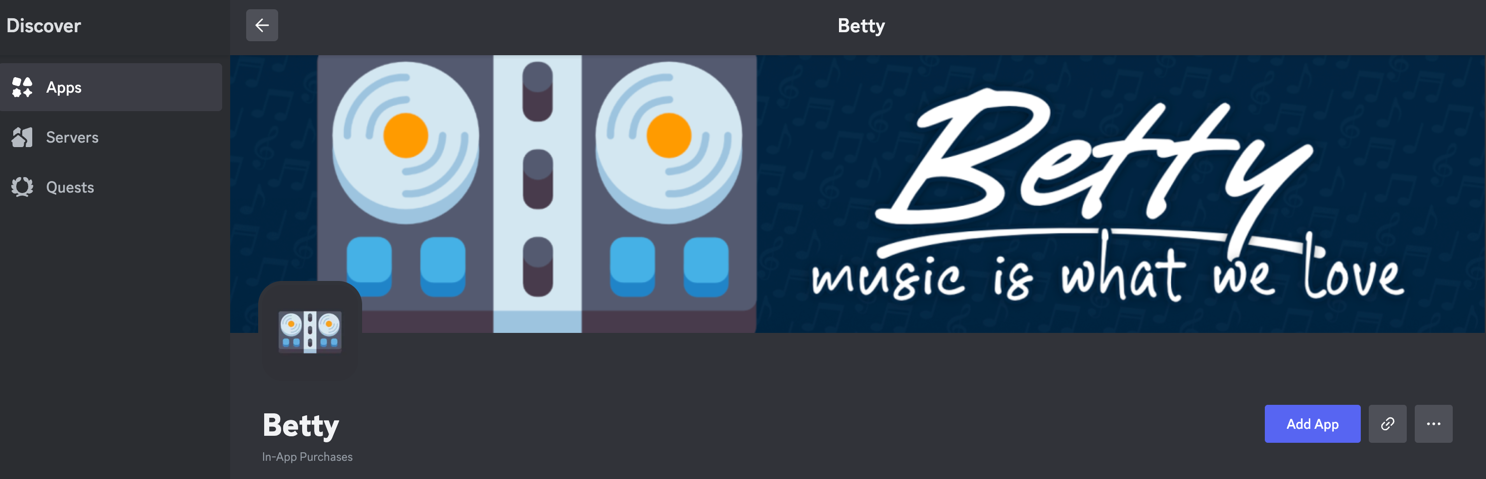
Open the invite page or search for Betty in the Discord App Directory and click Add App. Pick your server and confirm. You need the Manage Server permission on that server.
- 2
Join a voice channel
Connect to the voice channel where the music should play. Betty joins the channel you are in, so you don't have to pick one in the command.
- 3
Type /play
In any text channel, type
/playand enter a song name or paste a link. Playlists and albums are added to the queue as one group, so you can remove them again in one step.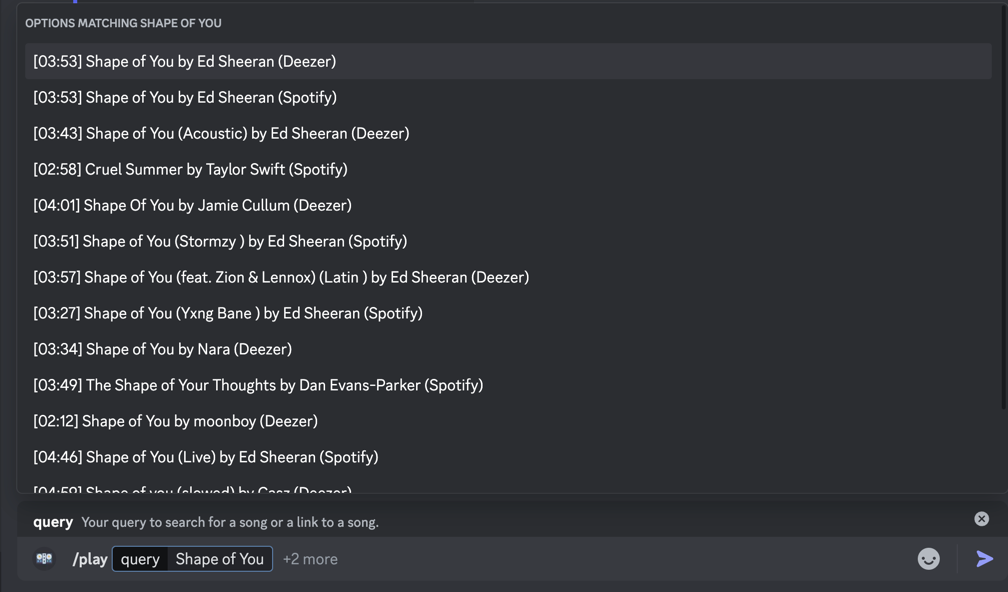
- 4
Control the music
Use the buttons under the now-playing message or commands like
/skip,/pauseand/queue. Everyone in the voice channel hears the same song at the same time.
Commands you'll actually use
- /play
- Play a song or add it to the queue by name or link.
- /search
- Search for a song and pick the right result.
- /skip
- Skip the current song or several at once.
- /pause · /resume
- Pause and continue playback.
- /queue
- See what's coming up next.
- /shuffle · /loop
- Shuffle the queue or loop it.
- /volume
- Change the playback volume.
- /lyrics
- Show the lyrics of the current or any song.
- /disconnect
- Make the bot leave the voice channel.
Play your own playlists
Links to public playlists work right away. To play your private Spotify or Tidal playlists and liked songs, connect your account once with /spotify or /tidal. With /playlist you can also build Betty playlists that mix songs from different platforms. More in the Spotify Discord bot guide.
Control the music from your browser
Type /open or go to the web player to manage the queue, like songs and follow synced live lyrics – handy when you're in a game and don't want to type commands.
Make it sound the way you like
Shape the sound with the 10-band /eq or filters like /bassboost, /nightcore and /vaporwave. Some effects are part of Premium.
Keep the music going
Music not playing? Quick fixes
The bot joins but there's no sound
Check that Betty has the Connect and Speak permissions in that voice channel and isn't server-muted. Also check your own user volume for the bot.
Slash commands don't show up
Make sure Betty is still on the server and that you're allowed to use application commands in that channel (Server Settings → Integrations).
Music stops when the queue ends
Turn on autoplay with the button under the queue-end message, and Betty keeps adding matching songs.
The player seems stuck
Use /fix – it tries to repair the player for your server when something isn't working correctly.
FAQ
Can you play music on Discord without a bot?
Not properly. Screen-sharing your music or Spotify Listen Along work in a pinch, but the audio quality is worse and Listen Along needs Spotify Premium for everyone. A music bot streams directly into the voice channel for everyone.
Is Betty free?
Yes. Adding Betty and playing music is free. Premium unlocks extra features like additional audio effects.
Does it work on Discord mobile?
Yes. Slash commands and the player buttons work the same in the Discord app on iOS and Android.
Can I add more than one music bot?
Yes. If you want music in several voice channels at the same time, you can add more Betty instances from the invite page.